Simulating my personal sun with Home Assistant
23. March 2026 • 4 min readI’ve bought myself a smart ceiling lamp a while ago (the Aqara T1M, to be precise) and set it up with Home Assistant. However, in the beginning I’ve basically just used it as a normal lamp except that I sometimes changed the color temperature and brightness in the evening. This clearly was not using the setup to its full potential.
Thus, I’ll quickly show you how I transformed this into a much smarter lighting design, which has two main features:
- In the morning, the lamp simulates a sunrise over the course of 15 minutes before my phone alarm rings (and of course it gets the phone time automatically).
- During the day, adaptive lightning kicks in: On midday the lamp shines cold light at maximum brightness whereas in the morning and evening it dims and shifts to warmer light.
What you need
- A smart light with adjustable brightness
- A Home Assistant setup in which you’ve integrated the lamp
- An Android phone (For iOS you will have to find a way to sync the alarm time from your phone to HA. This forum post should be a good starting point.)
- The Home Assistant app on your phone
Simulating sunrise
First, we’ll set up the surise transition. For this I use Ashley’s Light Fader. Once you pasted the code into a script, you can then add a new automation which I call “Sunrise” which simply turns on the lights and runs the Light Fader to go to 100% brightness over 15 minutes (these are variables which you can configure in the Light Fader script). You do not need to add a trigger here - we’ll set up the way for triggering the sunrise next.
Get the Adjustable Wake-Up to Android alarm blueprint. As the blueprint already tells you, you will have to enable the “Next alarm” sensor in the app under Settings → Companion App → Manage Sensors → Next Alarm → Enable. Once you installed the blueprint, you can click on adding an automation and should see the “Adjustable Wake-up to Android alarm” option.
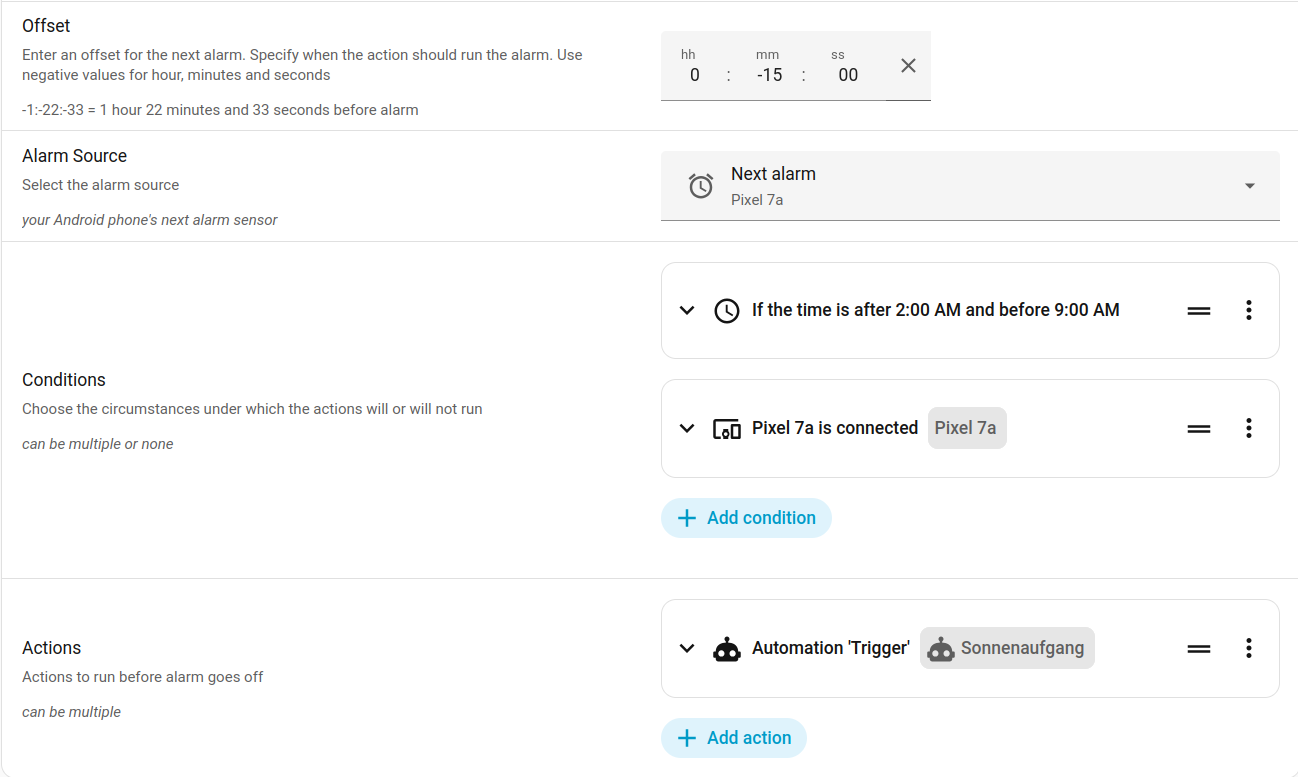
As you can see, I’ve not only set the offset to -15 minutes and added triggering our “Sunrise” automation as an Action, but I’ve also included some additional conditions to both ensure the light doesn’t do a sunrise for random alarms throughout the day (if you are a late riser, I’d suggest you change the first condition…) and to not run the automation if my phone is not in the home network. For the second condition you could alternatively do this using zones and the “at home” status, but this works better in case since I rarely have location services turned on.
At this point, Home Assistant should automatically execute a beautiful fade-in 15 minutes before your alarm clock goes off!
Simulating the rest of the day
For our second feature, we could probably script this ourselves - or we could simply rely on an excellent pre-built integration. The only hassle about this is that the integration is available on the Home Assistant Community Store, which, if you don’t have it yet, you need to set up first. Once HACS is installed and ready to use, you can search for “Adaptive Lighting” and install the integration. Then go to Settings → Devices & services → Add integration and add Adaptive Lighting. Then click on the newly installed integration, and click on the settings icon of the instance you just created. There you can select which lights should be affected by the effect and tweak a lot of variables if you’d like (though the default settings work great for me).
The great thing about this is that the two features actually play together quite well - Adaptive Lighting is smart enough to pause its interference when other automations run, such as our sunrise automation, but then reactivates itself if you later in the day turn on the lights again.
Closing thoughts
I really enjoy this setup, particularily during the winter times when the real sunrise occurs much later than my alarm goes off. Beyond this I can also really recommend the Aqara T1M - it’s a bright and high-quality lamp that isn’t super expensive and plays well with Home Assistant.